
How to run assessments that actually show you what students understand
Test Mode in Mathspace removes scaffolding and uses AI to mark student reasoning with follow-through marks — the same way you'd mark by hand. Learn how it works.

Test Mode is our first major step toward making Mathspace a true assessment platform — not just a learning platform.
Teachers have always needed assessment data they can trust. Not just whether a student got the final answer right, but whether they understood the method, where their reasoning broke down, and what they need next. That's what Test Mode is designed to capture.
In Test Mode, students work in a free-form environment with no hints, no videos, no step-by-step feedback, and no Milo. It's closer to the conditions of a real exam — students have to show their own thinking, write out their working, and rely on what they actually understand.
The difference is what happens after they submit.
AI marks their work the way you would
Our AI reads each student’s reasoning, not just whether the final answer is correct. It allocates marks based on method, the same way you’d mark a written test.
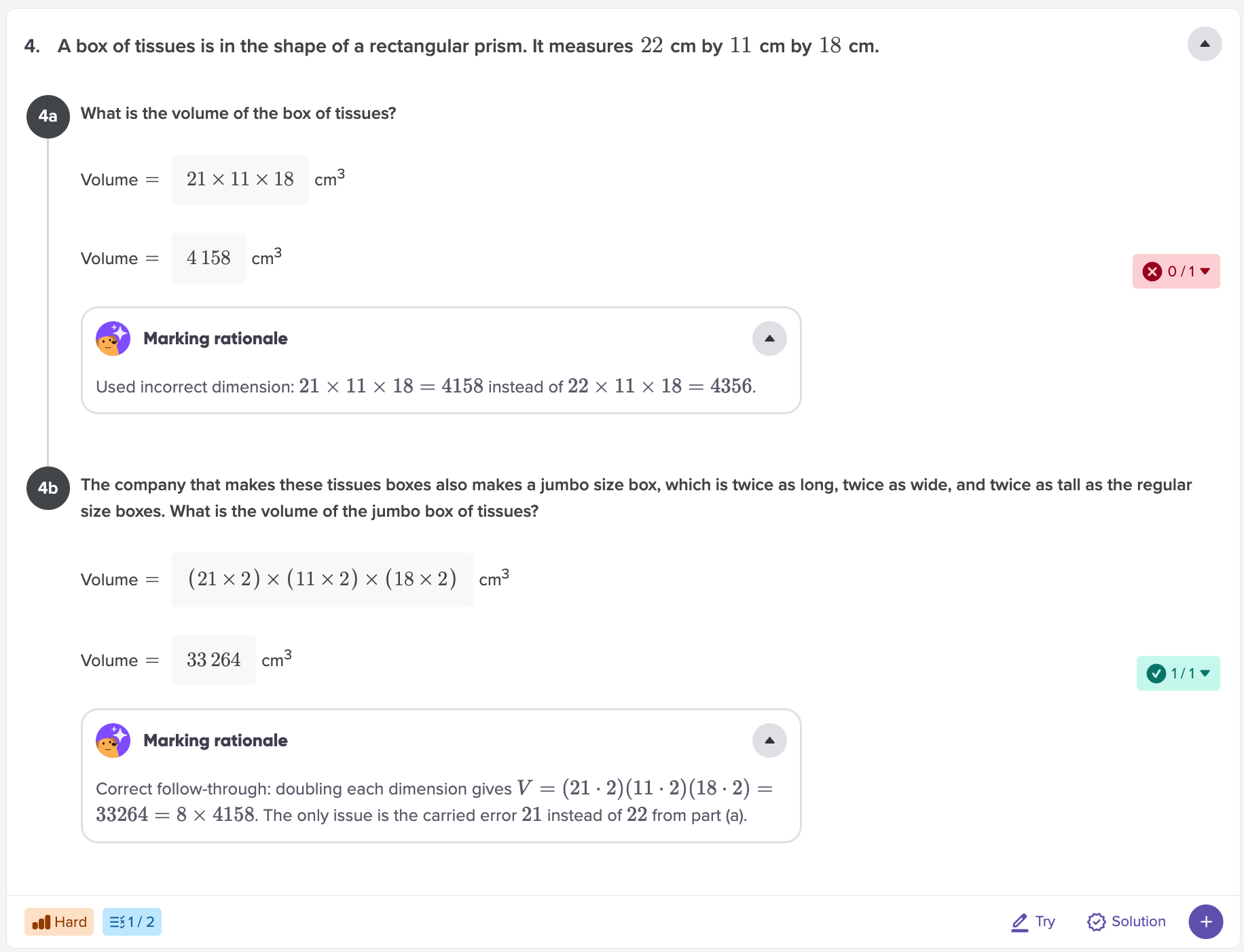
Here’s what that looks like in practice. Say a student is working through a multi-part question. In part (a), they make an arithmetic error and get the wrong answer. In parts (b) and (c), they use that wrong answer but they apply the correct method perfectly. Traditionally, with online marking engines, parts (b) and (c) are marked wrong because the numbers don’t match the expected answer. But you wouldn’t mark it that way. You’d recognise that the student demonstrated the right thinking and award follow-through marks for the method, even though the starting value was off. That’s exactly what the AI does.
The AI handles this across every question for every student in your class. For a 30-student test with 20 questions, that’s 600 marking decisions made in minutes, each one accounting for method, not just the final line.
Questions get a marking rationale
When students get a test back, the most common question is “why did I lose marks here?” Usually, answering that means a one-on-one conversation or written comments on 30 papers.
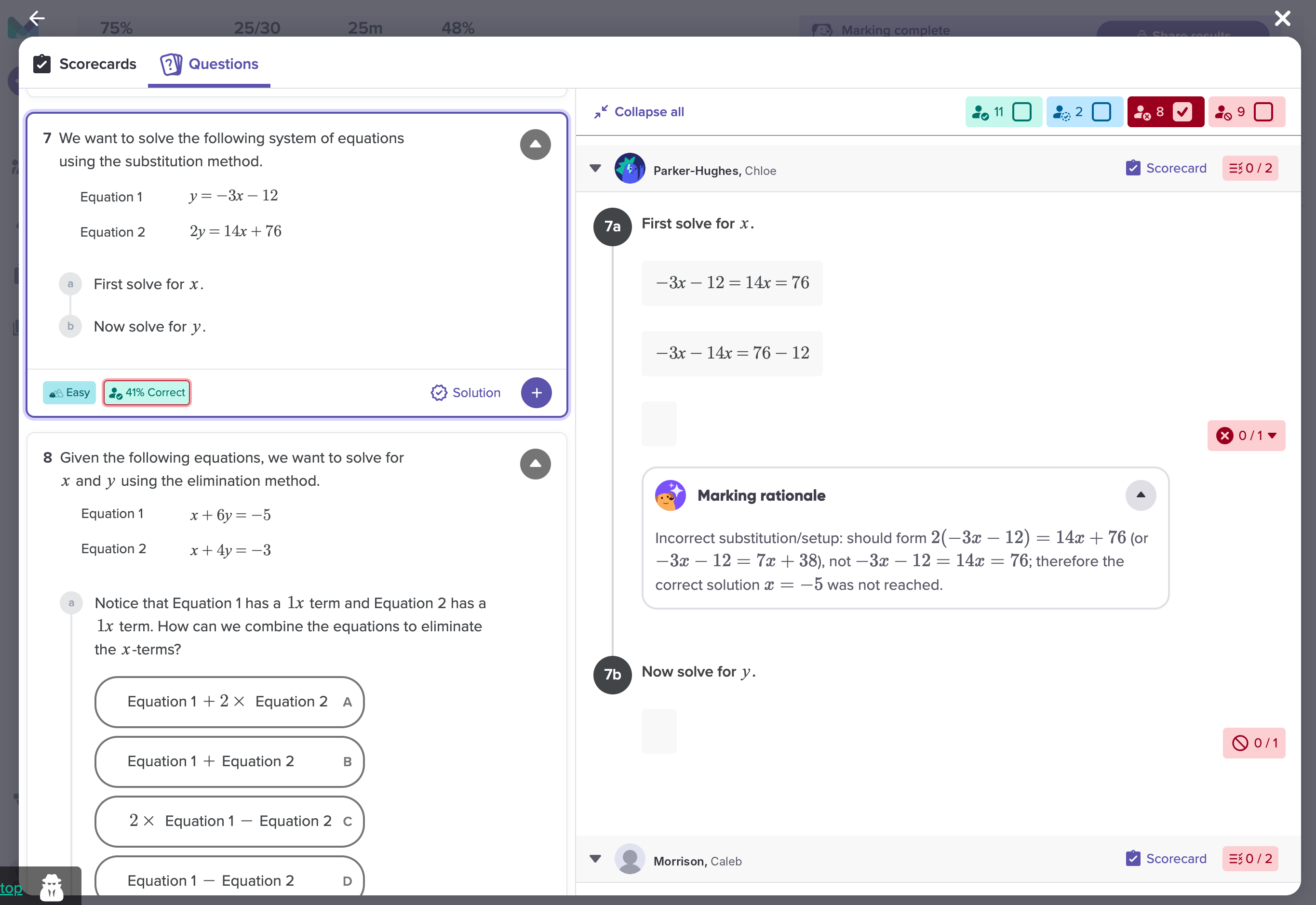
Test Mode generates a marking rationale for every question that requires reasoning, for every student. Students receive an overall mark for the question, and the rationale explains the reason for that mark including highlighting any mistake they may have made.
This turns results into something students can act on independently. Instead of seeing a score and moving on, they can identify the specific point where their reasoning broke down. A student who lost marks because they forgot to flip the inequality sign when dividing by a negative will see that clearly and they’ll know what to revise, without needing to ask you.
For teachers, this also reduces the volume of “why did I get this wrong?” conversations. The rationale is already there. You can spend your time on the students who need deeper support rather than re-explaining marking decisions.
Integrity context built in
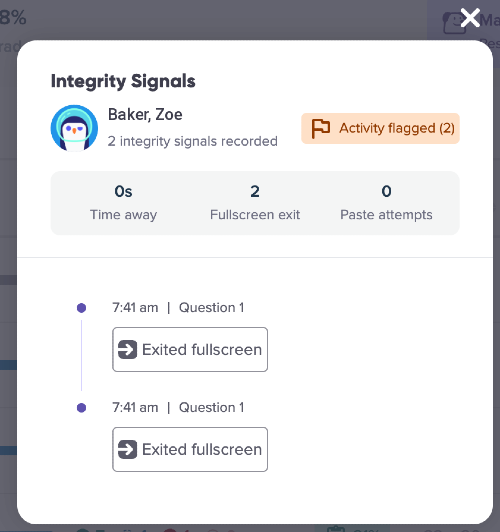
Our integrity monitoring logs give teachers clear visibility into student activity during assessments, including when students leave full screen, switch browser tabs or windows, and use copy and paste. This makes it easy to spot potential misuse and ensures results more accurately reflect each student’s true understanding.
You stay in control
AI marking only works if you trust it. That’s why Test Mode treats the AI’s output as a draft, not a final result.
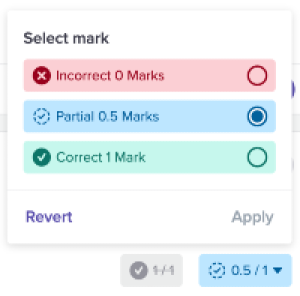
You can open any student’s test and review the marking question by question. If you disagree with a marking decision, maybe the AI was too generous on a partially correct method, or too strict on an unconventional but valid approach, you can override it. Soon, Your correction will also apply automatically to every student who answered that question the same way, so you’re not making the same adjustment 15 times.
This workflow means you’re not checking every mark on every paper. You’re reviewing the AI’s judgement on the questions that matter most, and correcting where needed. In practice, most teachers find they’re refining a small number of edge cases rather than reworking the whole test. The AI handles the volume; you handle the nuance.
Once you’re happy with the results, you can then release the marks to the students.
Controlled Result Release
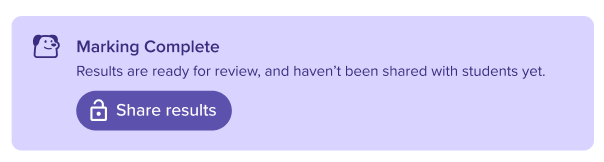
Teachers can choose to keep assessment results locked until they’re ready to release them. This prevents students who complete the assessment earlier from sharing questions with others, helping maintain fair conditions and ensuring more reliable results.
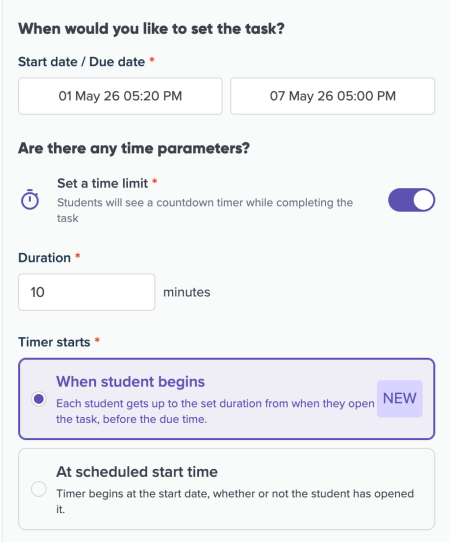
Flexible Assessment Timing
Teachers can now set assessments under timed conditions to suit different classroom needs. Choose a fixed start time so all students begin together, or allow a floating time window where each student receives the same duration when they start.
If timing isn’t required, assessments can also be assigned without a timer—simply set a due date, just like a standard custom task. This flexibility makes it easy to run anything from formal timed tests to take-home assessments, all within the same workflow.
Practice and assessment data in one place
This is the part that changes how you work. Test Mode results sit in your Mathspace reports alongside your students’ learning data. For the first time, you can see how students engage with the curriculum and how they perform when the support is removed, in the same platform.
That means no more exporting from one tool and importing into another. No more maintaining separate spreadsheets to get a complete picture of a student’s progress. Practice data and assessment data live side by side.
When to use it
End-of-topic checks. Run a quick assessment at the end of a unit to see what stuck and what needs revisiting before you move on.
Mid-unit quizzes. Use shorter tests as formative checkpoints. Because the AI handles marking, you get results back fast enough to act on them in your next lesson.
Regular unscaffolded practice. With many online assessments now fully digital, students benefit from regular practice in a format that mirrors real assessment conditions, no hints, no scaffolding, just their own thinking.
Spot class-wide patterns with scorecards
Once a test is complete, scorecards help you move from “who passed?” to “what are my students misunderstanding?”
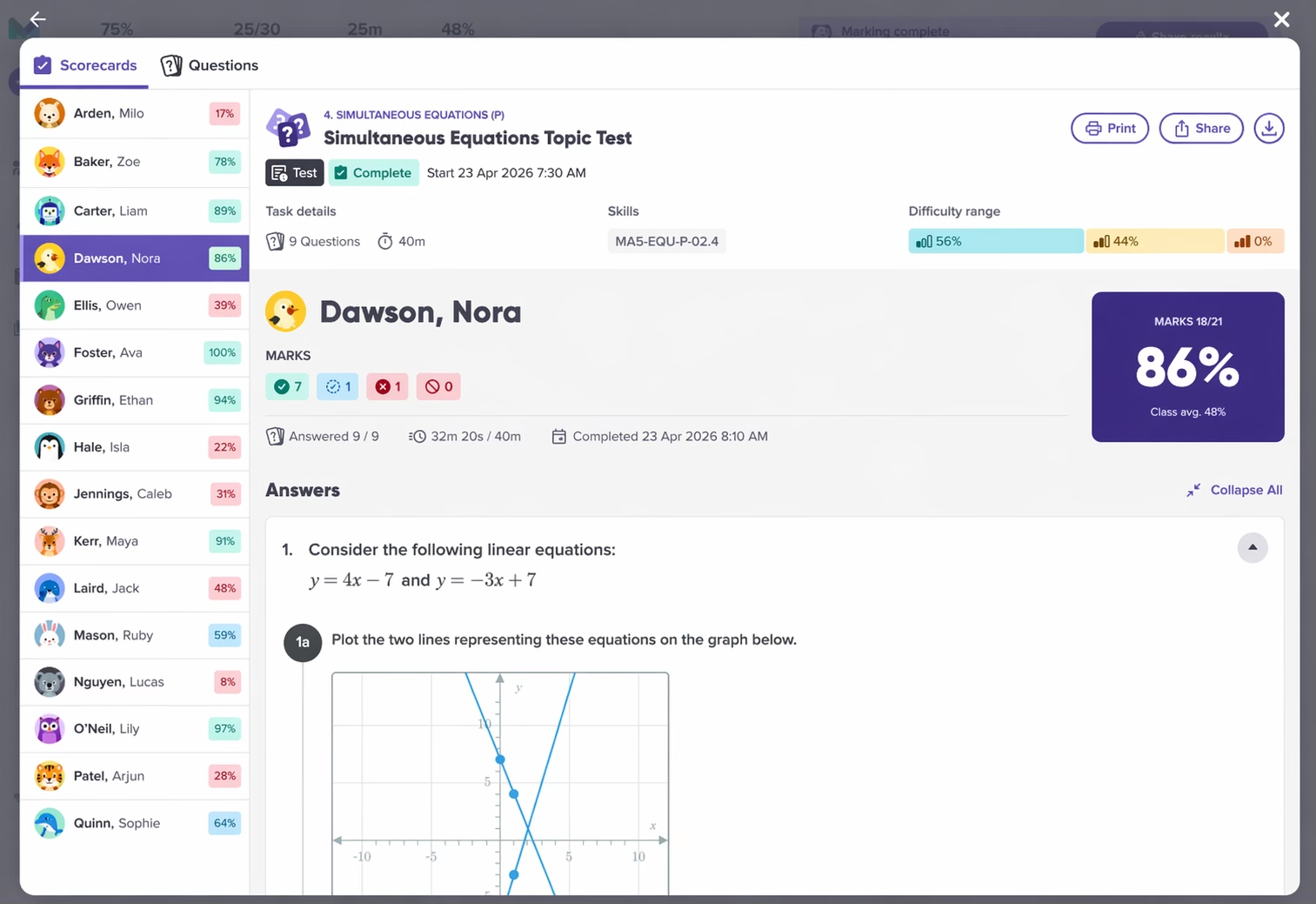
By student: Scroll through each student’s responses without clicking in and out of individual profiles. You can update marks inline and flick between students without leaving the view.
By question: This is where the patterns show up. See how the whole class performed on each question. If only 45% of students got a question right, filter for just the incorrect responses and see exactly what those students did. When multiple students all make the same type of error, that’s a misconception worth addressing in your next lesson, not just a number on a spreadsheet.
For a step-by-step guide of how to use test mode, see our knowledge base article: Creating a test and reviewing results with Scorecards