
Meet the new Mathspace teacher dashboard: everything for your class, one click away
The new Mathspace teacher dashboard puts every report, textbook and task one click from each class tile, with the class and textbook already filled in.

Every class you teach now has its own tile on the new Mathspace teacher dashboard. From that tile, the reports, textbook and tasks for that class are one click away. When you assign work from it, the class and textbook are already filled in.
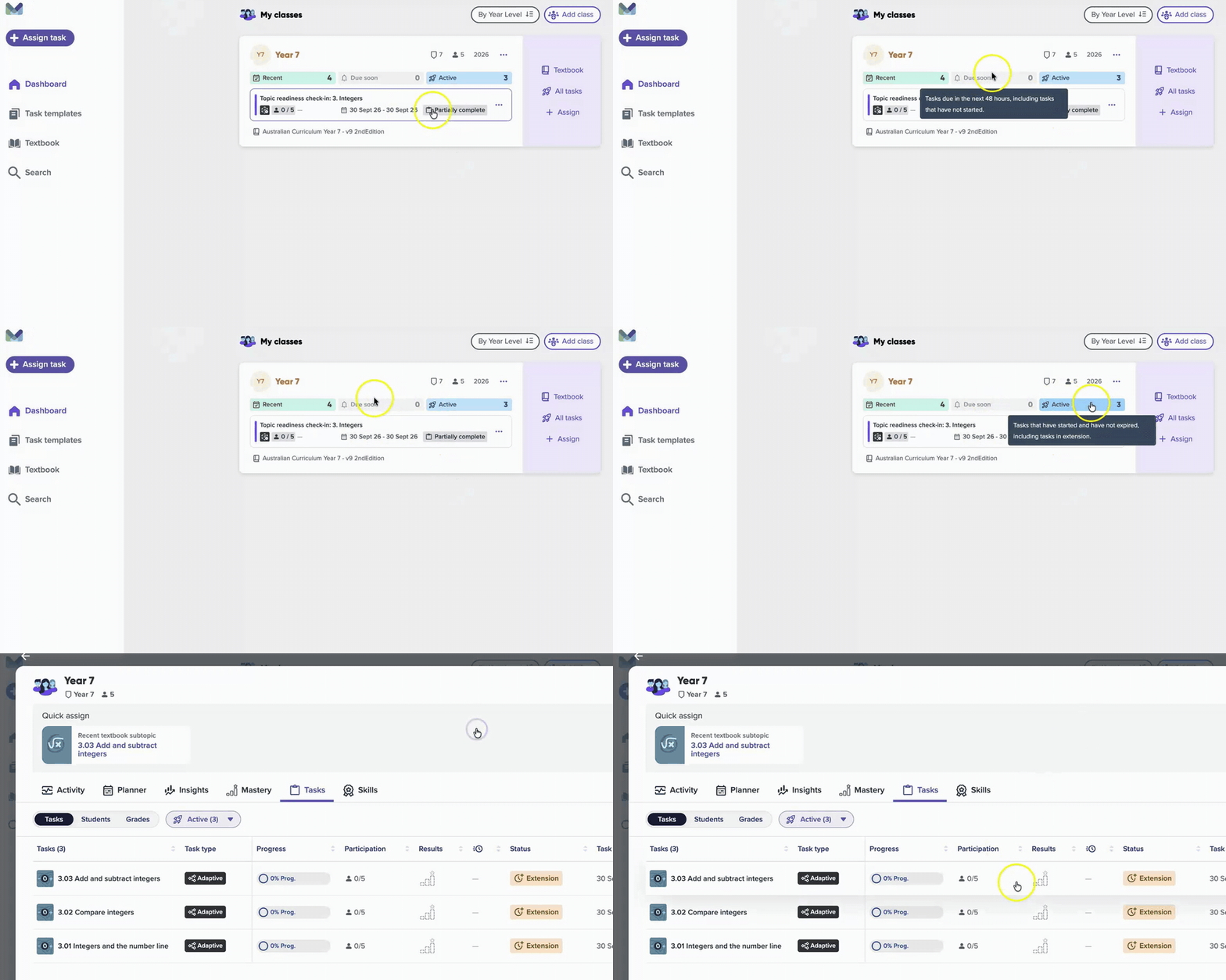
Every class has its own tile. Select a count and those tasks open, already filtered.
We rebuilt the dashboard around a simple question: what do teachers open Mathspace to do, day after day? Mostly it's the same few things. Check what's just been marked. See what's due. Open the textbook. Set the next task. The old class tiles were little more than a link. The new ones let you do all of that from the dashboard itself.
One click to the report you're after
Each class tile shows three counts across the top:
- Recent: tasks that reached their due date in the past 7 days, so you can see what's just been marked.
- Due soon: tasks due in the next 48 hours.
- Active: tasks that have started and haven't expired, including tasks in extension. Select any count and you land on that class's task list, already filtered to those tasks. Select a task on the tile and you go straight to its report. No menus, no filtering by class, no hunting for the right task.
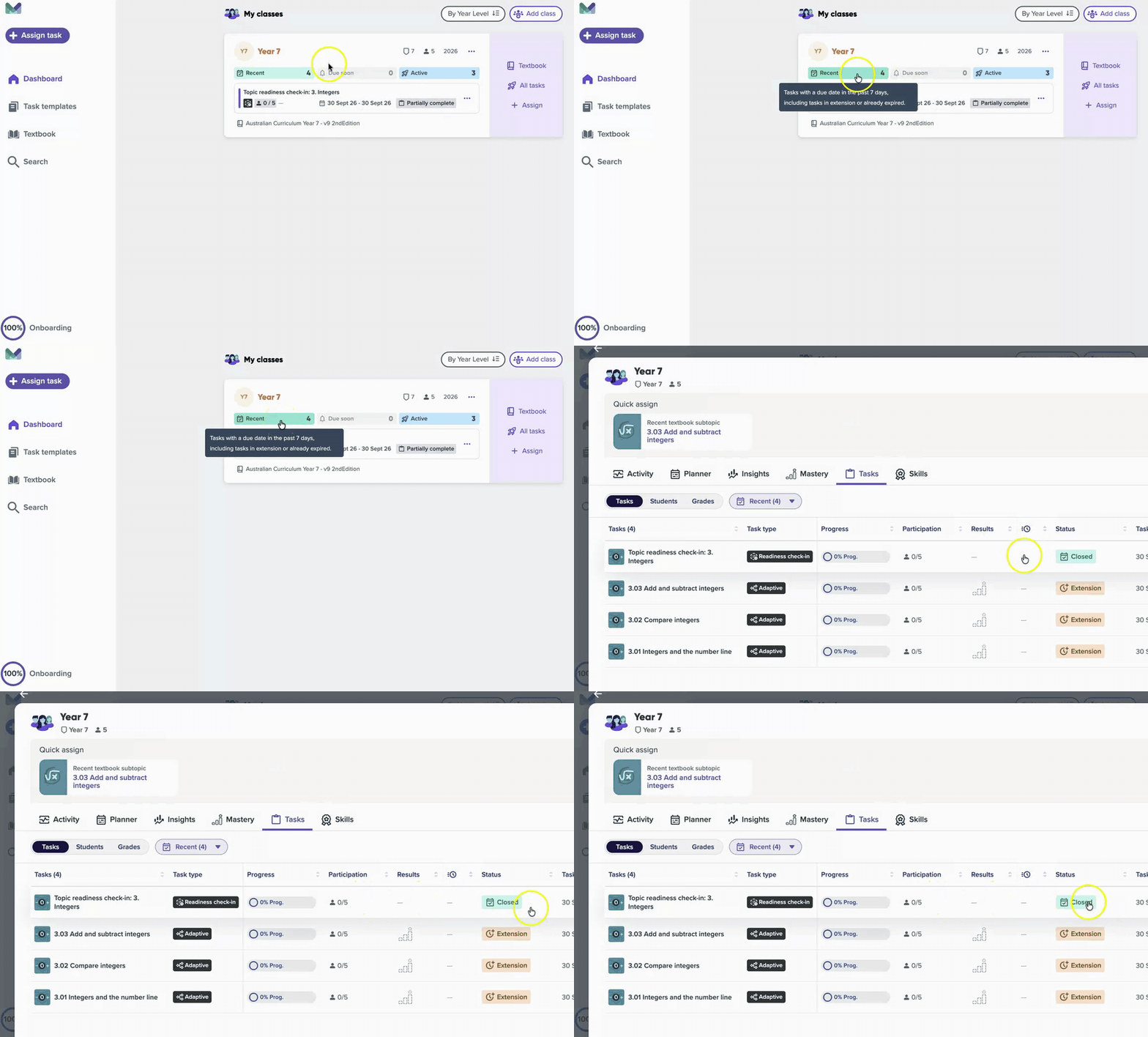
Reports open in a panel over the dashboard. Close it and you're back where you started, ready for the next class.
Prefer more room? Select View full page.
Assign work without the drop-downs
Select Assign on a class tile and Mathspace already knows which class you mean. Adaptive and custom tasks open at that class's textbook, so you go straight to choosing subtopics. On the final step, the class is already in Assign to.
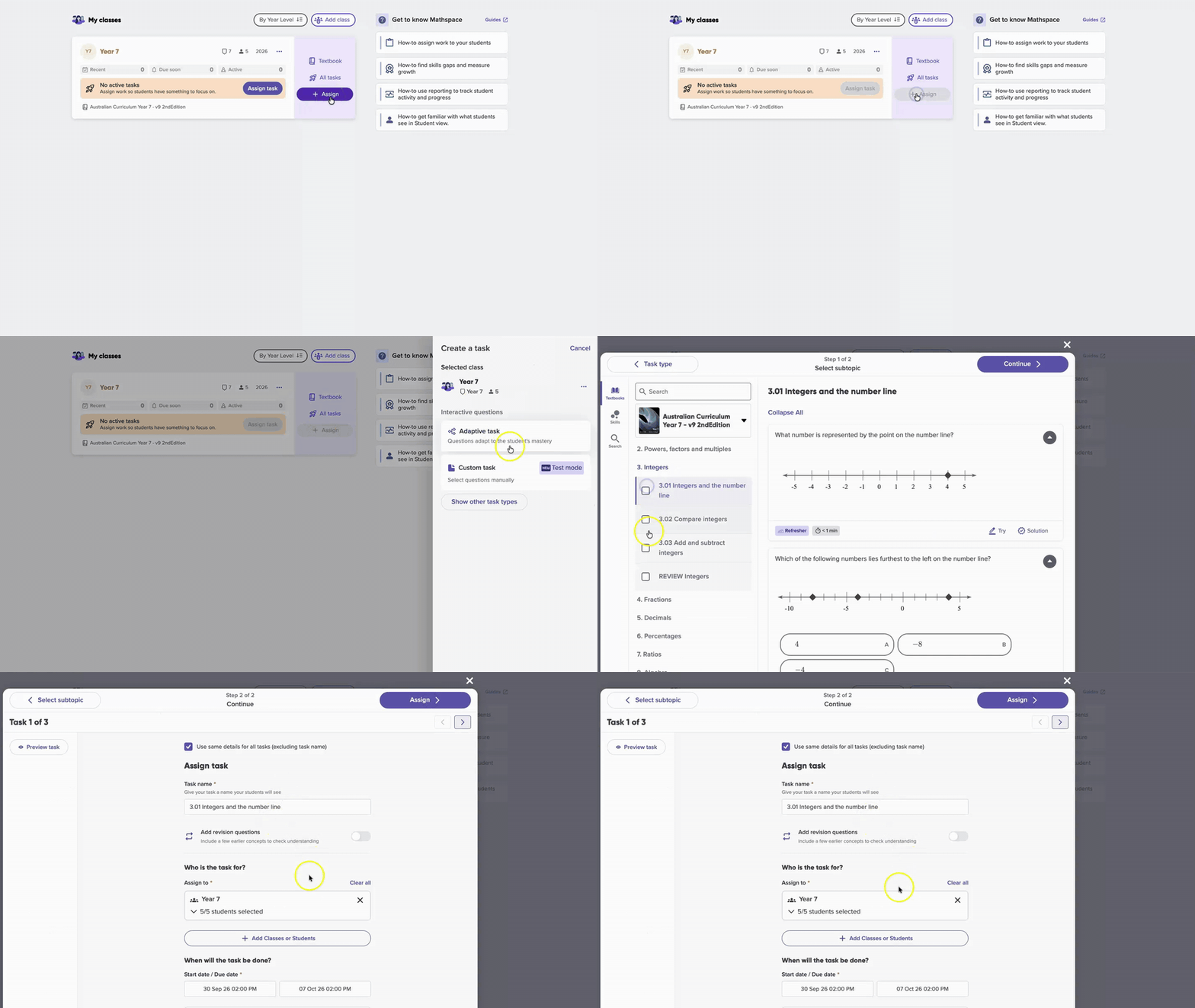
That means no scrolling through a list of textbooks, and no chance of setting Year 8 work from the Year 7 book by accident.
The right textbook, straight away
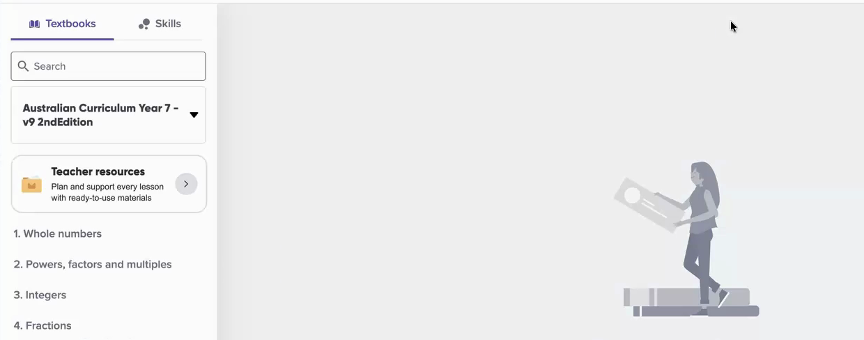
Select Textbook on a class tile to open that class's textbook directly, for example Australian Curriculum Year 7. There's no textbook drop-down to search through first.
A dashboard that tells you what's next
Each tile nudges you towards the next step. A new class prompts you to add students. A class with students but no work prompts you to assign a task. You can add a class from the dashboard too, in a quick pop-up rather than a separate page.
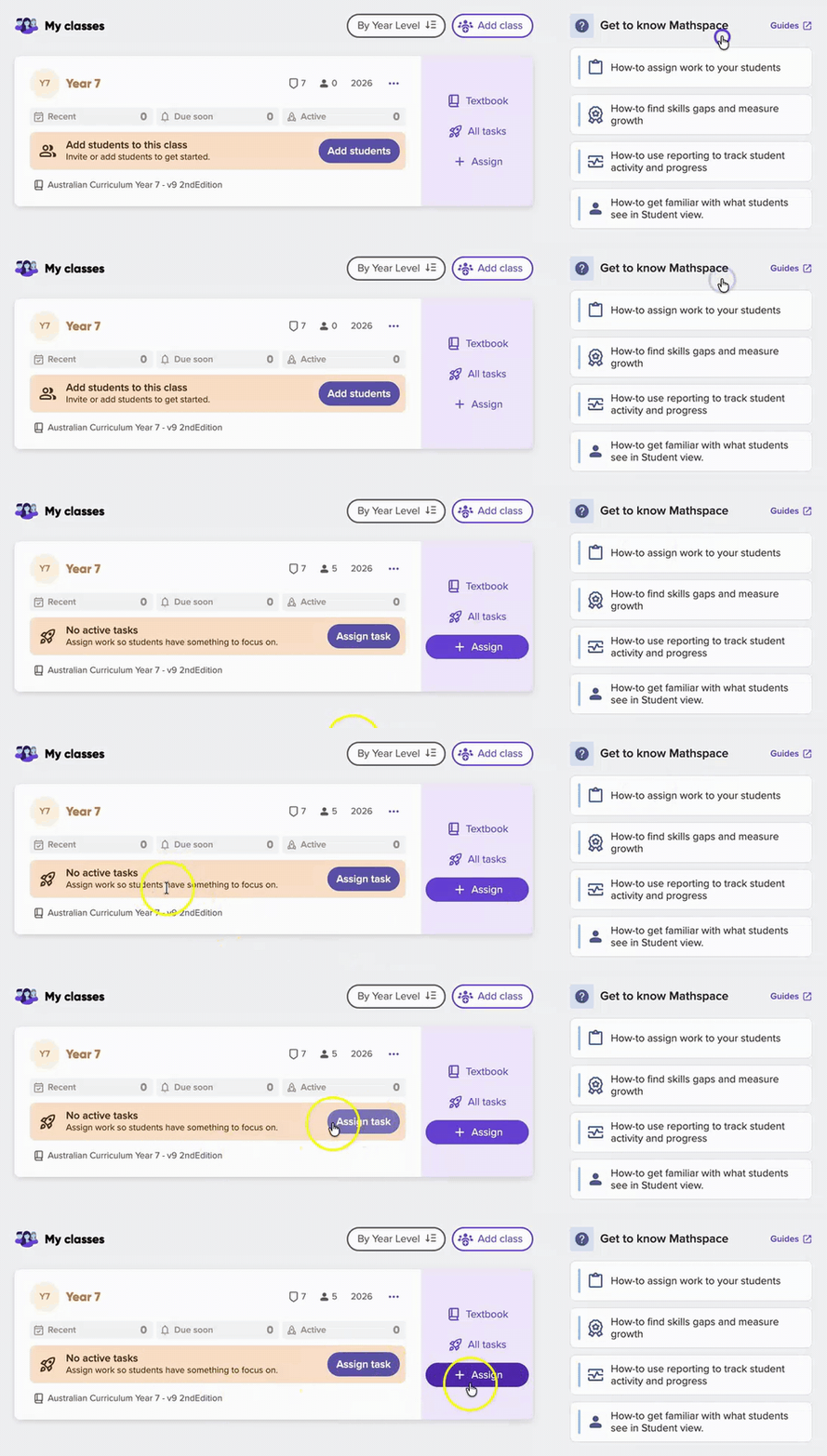
On the right of the dashboard, Get to know Mathspace links to short guides on assigning work, finding skills gaps, using reports and seeing what your students see.
Ready to explore the new teacher dashboard?
The new dashboard is rolling out to all teachers by 20 October. For a walkthrough of every part of the tile, read How to use the new teacher dashboard.